
Updated
There are 3 different places where you can find this invoice:
1. The Containers Section
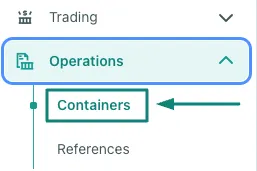
- Go to the Navigation Menu, and under Operations select Containers
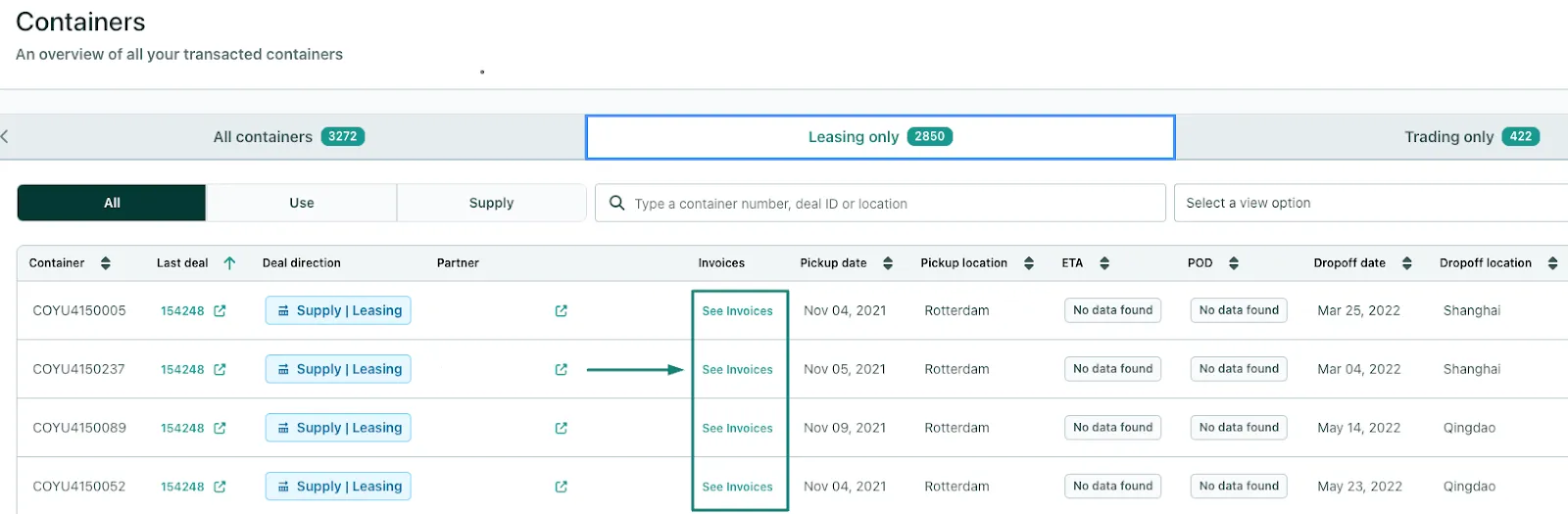
- Under the Leasing Only tab, you will find all the details related to your reported Containers, and by clicking on See Invoices
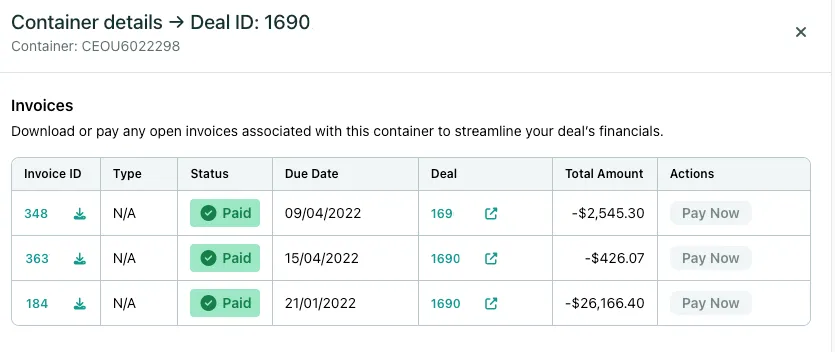
- You will find all the related charges:
2. Export directly from the Leasing Deal
- Access the specific leasing deal on the platform.
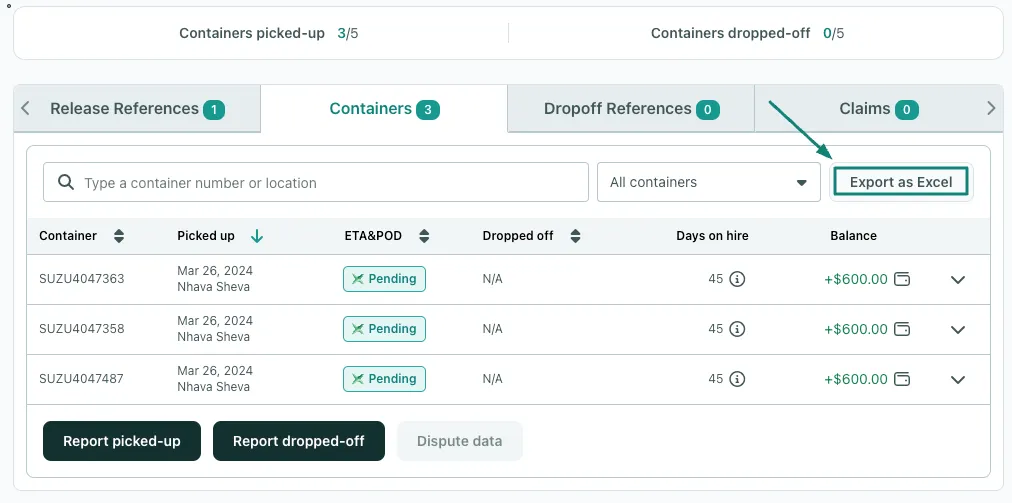
- Open the Containers tab
- Click on the Export as Excel button
- This action will export all the related container details to an Excel file directly from the deal, providing comprehensive information on the pickup charges and the related invoices:
3. Via the Container xChange Wallet
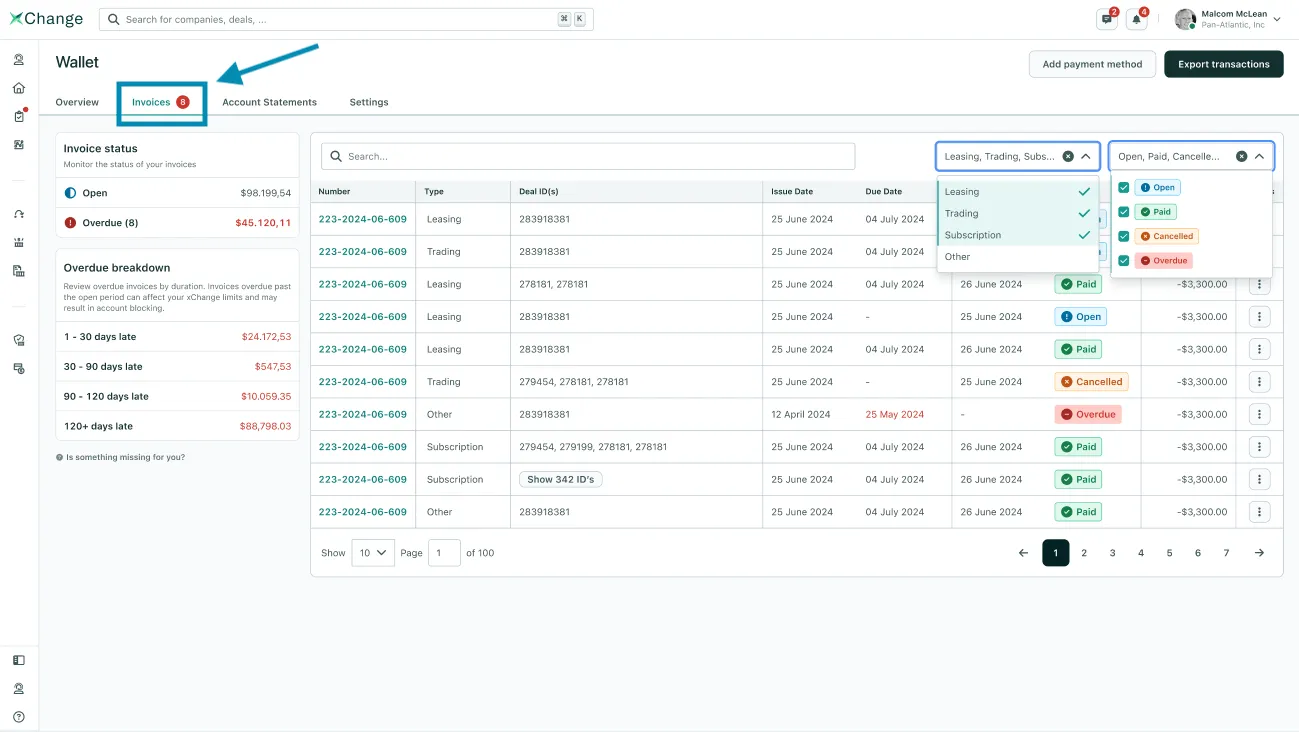
- Through the navigation menu on the left, go to the Wallet
- Once you are within the wallet, go to the Invoices Tab
-
Here you can use the search feature for a specific Deal ID by typing CTRL + F or Command + F
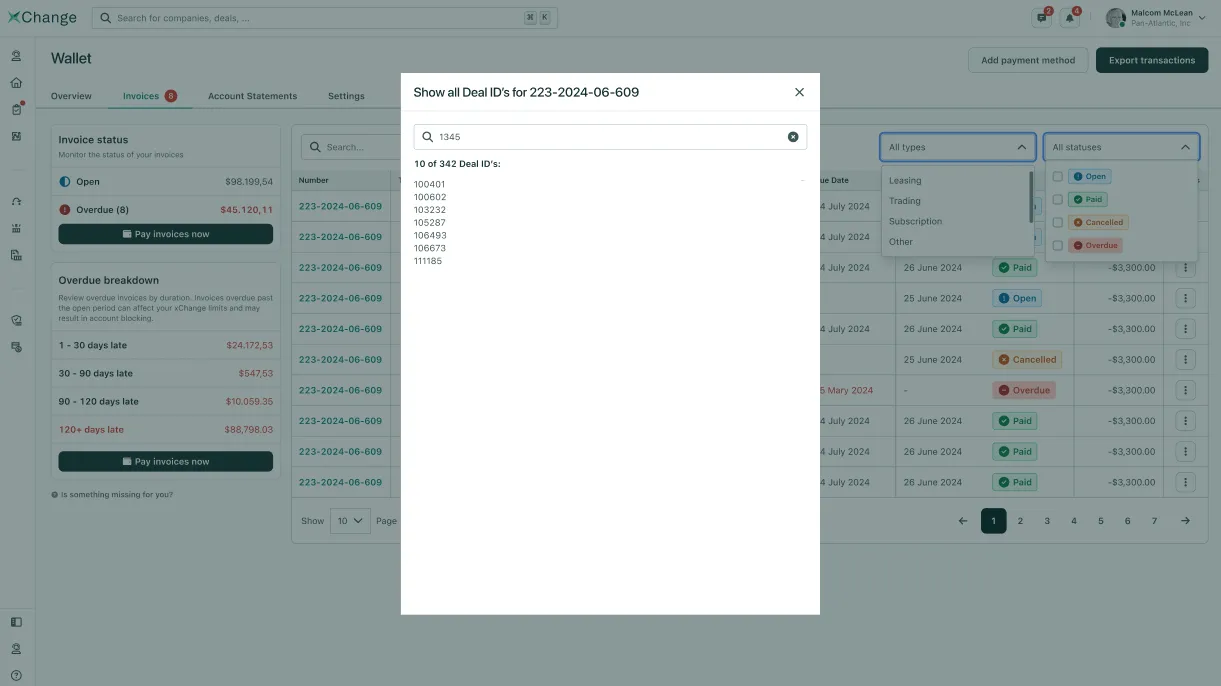
- By doing this, you can view detailed information such as the related leasing deal and the total pick-up charges.
Can't find what you need? Contact us